

Every dashboard project hits the same moment. Someone opens a design tool, drops in a chart, picks a color palette, and ten hours later the team is arguing about the shade of a button while nobody has agreed on what the dashboard is actually for.
Wireframing exists to prevent that. A good wireframe is a fast, low-commitment sketch of structure: what goes where, what matters most, and how the layout adapts from a wide desktop monitor to a phone. In this guide, we walk through a practical process for wireframing a web app or dashboard that works equally well on desktop and mobile, using a simple content-management-style dashboard as the running example.
What a wireframe is (and what it is not)
A wireframe is a structural blueprint. It shows layout, hierarchy, navigation and the main interactive elements. It deliberately leaves out brand colors, photography, final copy and visual polish.
That restraint is the point. When a screen is gray boxes and placeholder labels, reviewers talk about the right things: Is the most important information easy to find? Is the main action obvious? Does the navigation make sense? They stop talking about fonts and gradients, which can wait.
A wireframe is not a prototype of the final look, and it is not a spec for developers on its own. Think of it as the conversation starter that makes every later step cheaper.
Step 1: Define the job of the dashboard
Before drawing a single box, answer three questions in writing:
- Who uses it? An editor checking a publishing queue has different needs than an analyst exploring trends.
- What decisions does it support? A dashboard that does not help someone decide or act is just a poster of numbers.
- How often is it opened? A screen checked all day should be dense and scannable. One opened weekly can afford more explanation.
If you can summarize the dashboard in one sentence, such as “It shows me what needs attention right now and lets me act on it,” you have a design north star. Every element on the wireframe should earn its place against that sentence.
Step 2: Choose a structure that matches how people scan
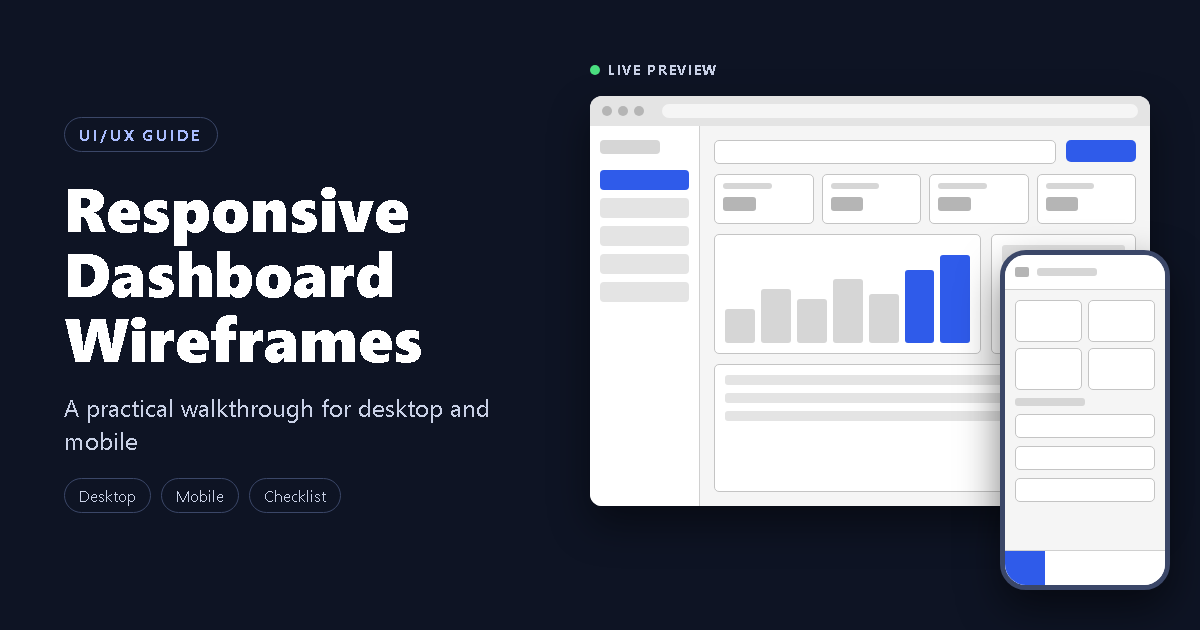
Most effective dashboards follow the same reading order: orient first, summarize second, investigate third. On a desktop layout, that translates into a familiar anatomy:
- Persistent navigation (left sidebar). Five or fewer top-level destinations is a good starting point, such as Overview, Items, Pipeline, Reports and Settings. The current page is clearly marked.
- Top bar. Global search on the left, the primary action (for example, “New item”) and the user’s profile on the right. Keeping the primary action in a consistent spot builds muscle memory.
- Page title and controls. A clear heading, plus filters that affect the whole page, like a date range selector.
- Summary cards. Three to five key metrics in a row. These answer “how are things overall?” in a few seconds.
- Primary visualization and attention panel. A trend chart takes the larger share of the space, with a smaller “needs attention” list beside it. The chart shows what happened; the list tells people what to do next.
- Detail table. Recent or relevant records, with name, status, owner and last-updated columns. This is where people drill down.
This top-to-bottom order moves from the most summarized information to the most detailed. People who only need reassurance can stop after the cards. People who need to act can keep scrolling.
Step 3: Use placeholders, not made-up data
It is tempting to fill a wireframe with realistic-looking numbers. Resist that. Invented figures cause two problems: reviewers start debating whether the numbers are plausible, and fake data can quietly survive into later stages and mislead people.
Use obvious placeholders instead:
- Labels like [Metric 1] and values like 00 for summary cards
- [Item name], [Owner] and [Date] for table cells
- Gray blocks for avatars, thumbnails and chart bars
Placeholders keep attention on structure and make it obvious what still needs real content. They also flag exactly what you need from stakeholders before the high-fidelity stage: the actual metrics, the actual statuses, the actual alert types.
Step 4: Stay in grayscale, with one accent
Wireframes work best in neutral tones, with a single accent color reserved for the things that matter most: the primary button, the active navigation item, and the data you want the eye to land on.
This does two jobs. First, it forces you to build hierarchy through size, position and spacing instead of decoration. Second, it gives you a quick test: if you squint at the screen and the accent color is not guiding your eye to the right places, the hierarchy needs work.
Even at this stage, keep readability in mind. Body text should have a contrast ratio of at least 4.5:1 against its background, which is the common WCAG AA guideline. Light gray text on a light gray box looks elegant in a wireframe and becomes a real problem in production.
Step 5: Adapt for mobile, don’t just shrink
The most common responsive mistake is squeezing the desktop layout into a narrow column and calling it done. A good mobile wireframe makes deliberate decisions about what changes. For the dashboard above, the translation looks like this:
- Sidebar becomes a menu button and bottom tab bar. Thumbs live at the bottom of the screen, so the three or four most-used destinations go there. Everything else lives behind a “More” tab or a menu icon in the header.
- Top bar shrinks to essentials. A page title, a menu button and a search icon. Search expands when tapped.
- Summary cards move to a two-column grid. Four cards fit comfortably as a two-by-two block. Remove secondary text, like “vs. previous period,” if space is tight.
- The chart gets simpler or moves down. Complex charts often do not survive a 390-pixel-wide screen. Consider a single headline number with a small trend line, with the full chart one tap away.
- The table becomes a list of cards. Wide tables force horizontal scrolling, which is awkward on a phone. Show the item name and status on each row, and move owner and date into a detail view.
- The primary action stays reachable. Whether it is a “+ New” button in the header or a floating action, it should never disappear behind a menu.
A useful rule: on mobile, ask what the user must see in the first screen without scrolling, then build outward from there.
Step 6: Build accessibility into the wireframe
Accessibility is cheapest when it starts at the wireframe stage, because it is mostly about structure. A few habits to adopt now:
- Make touch targets at least 44 pixels tall and wide. Small tap areas cause errors on phones and are frustrating for anyone with limited dexterity.
- Plan for real controls. Buttons should behave as buttons, links as links, and inputs should have labels. Annotating this on the wireframe helps developers get it right the first time.
- Label icon-only buttons. A magnifying glass or hamburger icon needs a text alternative for screen readers.
- Do not rely on color alone. If status is shown with a colored dot, add a word like “Draft,” “In review” or “Live.”
Common wireframing mistakes to avoid
- Starting with visuals. If you are choosing colors before the layout is settled, you are working in the wrong order.
- Too many metrics. If everything is highlighted, nothing is. Pick the handful that support the dashboard’s one-sentence purpose.
- Hiding the primary action. The most common task should never take more than one click or tap.
- Designing only the happy path. Plan empty states (no data yet), loading states and error states, not just the full, populated screen.
- Skipping the small screen. Designing desktop first and “fixing” mobile later almost always leads to a compromised mobile experience. Designing both together, as in this walkthrough, exposes conflicts early.
A quick checklist before you move to high fidelity
- The dashboard’s purpose can be stated in one sentence.
- The primary action is obvious on both desktop and mobile.
- Navigation has five or fewer top-level destinations.
- Summary metrics are limited to what supports the main decisions.
- Every placeholder is mapped to a real piece of content someone has agreed to provide.
- The mobile layout is a deliberate redesign, not a shrunken copy.
- Touch targets, labels and status text have been considered.
- Empty, loading and error states are listed, even if not yet drawn.
How to test a wireframe quickly
You do not need a lab. Two cheap tests give you a lot:
- The five-second test. Show someone the screen for five seconds, then hide it. Ask what the page is for and what they would do first. If their answer does not match your intent, the hierarchy needs adjustment.
- The task walk-through. Give a colleague a realistic task, such as “find the item that needs attention and open it,” and watch where they hesitate. Hesitation points to unclear labels, buried actions or confusing navigation.
Both tests work on gray boxes, which is exactly why wireframes are worth making first.
Frequently asked questions
Should I wireframe desktop or mobile first? It depends on where your users actually are. If usage is split, design both together, as shown here. Doing so keeps you from treating either one as an afterthought.
How detailed should a wireframe be? Detailed enough to settle structure, hierarchy and navigation, and no more. If you find yourself debating exact colors or illustration styles, you have moved past wireframing.
Can I use a wireframe as the final design? Not on its own. A wireframe answers “what goes where.” A visual design answers “how does it look and feel,” and developers will need both.
What tools can I use? Anything that lets you work quickly: a pencil and paper, a dedicated design tool, or an AI assistant that can generate editable layouts. The tool matters far less than the questions you ask along the way.
Conclusion
A dashboard wireframe is not about drawing pretty boxes. It is a way to agree on purpose, hierarchy and behavior before anyone invests in visual polish or code. Start with the job the dashboard has to do, structure the screen to match how people scan, use placeholders instead of fake data, adapt thoughtfully for mobile, and bake in accessibility from the first sketch.
Do that, and the later stages of design and development become faster, cheaper and far less contentious.
Here is two example project, made on React JS:
Mobile Devices – Get Project File
Desktop Devices – Get Project File
You can run this project for a practical Experience, Thanks for your interest.