

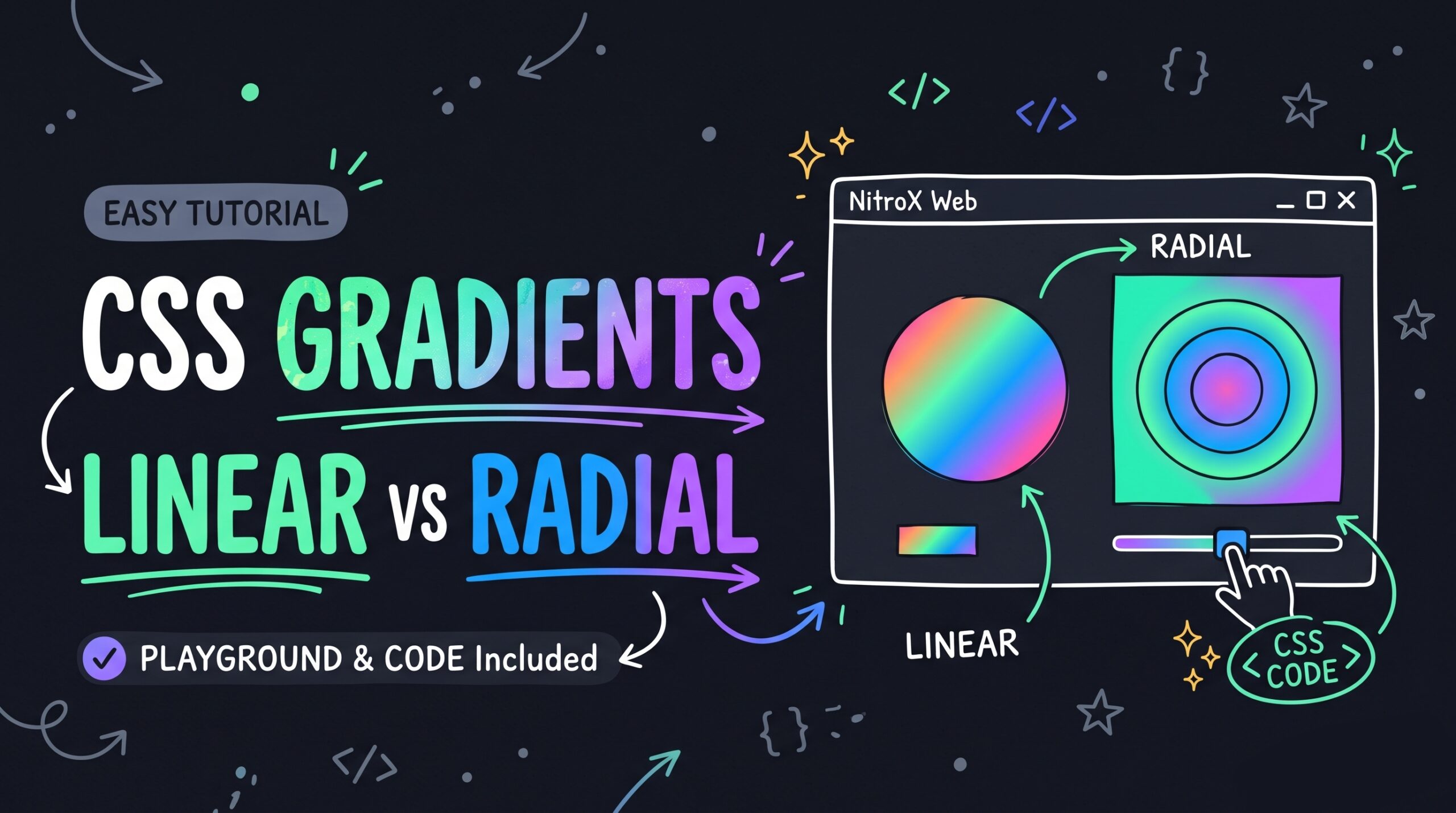
Create a folder containing index.html, style.css, and script.js.
1. HTML (index.html)
<!DOCTYPE html>
<html lang="en">
<head>
  <meta charset="UTF-8">
  <meta name="viewport" content="width=device-width, initial-scale=1.0">
  <title>CSS Gradient Playground: Linear & Radial Made Easy</title>
  <link rel="stylesheet" href="style.css">
</head>
<body>

  <header class="navbar">
    <div class="logo">NitroX Web</div>
    <span class="badge">Interactive Guide</span>
  </header>

  <main class="playground-wrapper">
    <!-- Visual Preview Block -->
    <section class="preview-card">
      <div id="gradientPreview" class="gradient-display"></div>

      <div class="code-output-container">
        <label for="cssOutput">Grab Your CSS Code</label>
        <div class="code-box">
          <code id="cssOutput">background: linear-gradient(135deg, #6366f1, #a855f7);</code>
          <button id="copyBtn" aria-label="Copy Code">
            <span class="btn-text">Copy</span>
          </button>
        </div>
      </div>
    </section>

    <!-- UI Controls Block -->
    <section class="controls-card">
      <h2>Customize Your Gradient</h2>

      <!-- Gradient Type Selector -->
      <div class="control-group">
        <span class="group-label">Gradient Type</span>
        <div class="tab-toggle">
          <button id="linearBtn" class="tab-btn active" data-type="linear">Linear Gradient</button>
          <button id="radialBtn" class="tab-btn" data-type="radial">Radial Gradient</button>
        </div>
      </div>

      <!-- Color Inputs -->
      <div class="control-group">
        <span class="group-label">Color Stops</span>
        <div class="color-stops">
          <div class="color-picker-wrapper">
            <input type="color" id="color1" value="#6366f1">
            <label for="color1">Color 1</label>
          </div>
          <div class="color-picker-wrapper">
            <input type="color" id="color2" value="#a855f7">
            <label for="color2">Color 2</label>
          </div>
        </div>
      </div>

      <!-- Direction & Shape Customization -->
      <div id="linearControls" class="control-group">
        <label for="angleRange">Angle (Degrees: <span id="angleVal">135</span>°)</label>
        <div class="range-wrapper">
          <input type="range" id="angleRange" min="0" max="360" value="135">
        </div>
      </div>

      <div id="radialControls" class="control-group" hidden>
        <label for="shapeSelect">Shape & Position</label>
        <select id="shapeSelect">
          <option value="circle at center">Circle (Center)</option>
          <option value="circle at top">Circle (Top)</option>
          <option value="circle at bottom">Circle (Bottom)</option>
          <option value="ellipse at center">Ellipse (Center)</option>
          <option value="circle at top left">Circle (Top Left)</option>
          <option value="circle at bottom right">Circle (Bottom Right)</option>
        </select>
      </div>

      <!-- Quick Preset Buttons -->
      <div class="control-group">
        <span class="group-label">Quick Presets</span>
        <div class="preset-grid">
          <button class="preset-btn" data-c1="#ff416c" data-c2="#ff4b2b" data-type="linear" data-extra="135">Sunset</button>
          <button class="preset-btn" data-c1="#00c6ff" data-c2="#0072ff" data-type="linear" data-extra="135">Ocean</button>
          <button class="preset-btn" data-c1="#11998e" data-c2="#38ef7d" data-type="linear" data-extra="135">Forest</button>
          <button class="preset-btn" data-c1="#f12711" data-c2="#f5af19" data-type="radial" data-extra="circle at center">Fireplace</button>
        </div>
      </div>

    </section>
  </main>

  <script src="script.js"></script>
</body>
</html>
2. CSS (style.css)
/* ==========================================================================
   Global Variables (NitroX Web Dark Palette)
   ========================================================================== */
:root {
  --bg-dark: #090d16;
  --bg-card: #131b2e;
  --border-color: #1e293b;
  --text-main: #f8fafc;
  --text-muted: #94a3b8;
  --accent-color: #10b981; /* Emerald/Mint */
  --accent-blue: #3b82f6;
  --radius-lg: 16px;
  --radius-md: 10px;
  --transition: 0.2s cubic-bezier(0.4, 0, 0.2, 1);
  --shadow-lg: 0 15px 30px -10px rgba(0, 0, 0, 0.5);
}

* {
  box-sizing: border-box;
  margin: 0;
  padding: 0;
}

body {
  font-family: system-ui, -apple-system, BlinkMacSystemFont, 'Segoe UI', Roboto, sans-serif;
  background-color: var(--bg-dark);
  color: var(--text-main);
  line-height: 1.6;
  min-height: 100vh;
  padding-bottom: 3rem;
}

/* ==========================================================================
   Header Navbar
   ========================================================================== */
.navbar {
  display: flex;
  justify-content: space-between;
  align-items: center;
  padding: 1.25rem 2rem;
  border-bottom: 1px solid var(--border-color);
  background: rgba(19, 27, 46, 0.85);
  backdrop-filter: blur(12px);
  -webkit-backdrop-filter: blur(12px);
  position: sticky;
  top: 0;
  z-index: 100;
}

.logo {
  font-weight: 800;
  font-size: 1.25rem;
  letter-spacing: -0.02em;
  color: var(--accent-color);
}

.badge {
  background: rgba(16, 185, 129, 0.12);
  color: var(--accent-color);
  font-size: 0.75rem;
  font-weight: 700;
  text-transform: uppercase;
  letter-spacing: 0.05em;
  padding: 0.35rem 0.85rem;
  border-radius: 999px;
}

/* ==========================================================================
   Layout Grid
   ========================================================================== */
.playground-wrapper {
  max-width: 1000px;
  margin: 3rem auto;
  padding: 0 1.5rem;
  display: grid;
  grid-template-columns: 1.2fr 1fr;
  gap: 2rem;
}

/* Visual Panel */
.preview-card {
  background-color: var(--bg-card);
  border: 1px solid var(--border-color);
  border-radius: var(--radius-lg);
  padding: 1.5rem;
  display: flex;
  flex-direction: column;
  gap: 1.5rem;
  box-shadow: var(--shadow-lg);
}

.gradient-display {
  flex-grow: 1;
  min-height: 320px;
  border-radius: var(--radius-md);
  box-shadow: inset 0 2px 8px rgba(0,0,0,0.4);
}

.code-output-container {
  display: flex;
  flex-direction: column;
  gap: 0.5rem;
}

.code-output-container label {
  font-size: 0.8rem;
  font-weight: 700;
  text-transform: uppercase;
  color: var(--text-muted);
}

.code-box {
  display: flex;
  align-items: center;
  background-color: #05080e;
  border: 1px solid var(--border-color);
  border-radius: var(--radius-md);
  padding: 0.75rem 1rem;
  font-family: 'Courier New', Courier, monospace;
  font-size: 0.9rem;
  overflow: hidden;
}

#cssOutput {
  flex-grow: 1;
  color: #38bdf8;
  word-break: break-all;
}

#copyBtn {
  background: var(--accent-color);
  color: #000000;
  border: none;
  border-radius: 6px;
  padding: 0.4rem 0.85rem;
  font-size: 0.75rem;
  font-weight: 700;
  cursor: pointer;
  margin-left: 0.75rem;
  transition: opacity var(--transition);
}

#copyBtn:hover {
  opacity: 0.9;
}

/* Controls Panel */
.controls-card {
  background-color: var(--bg-card);
  border: 1px solid var(--border-color);
  border-radius: var(--radius-lg);
  padding: 2rem;
  display: flex;
  flex-direction: column;
  gap: 1.5rem;
}

.controls-card h2 {
  font-size: 1.35rem;
  font-weight: 800;
  letter-spacing: -0.02em;
}

.control-group {
  display: flex;
  flex-direction: column;
  gap: 0.6rem;
}

.group-label, label {
  font-size: 0.875rem;
  font-weight: 600;
  color: var(--text-muted);
}

/* Tab buttons for choosing linear or radial */
.tab-toggle {
  display: flex;
  background-color: #05080e;
  border-radius: var(--radius-md);
  padding: 0.25rem;
}

.tab-btn {
  flex: 1;
  background: none;
  border: none;
  color: var(--text-muted);
  font-weight: 600;
  font-size: 0.85rem;
  padding: 0.6rem;
  cursor: pointer;
  border-radius: 7px;
  transition: color var(--transition);
}

.tab-btn.active {
  background-color: var(--border-color);
  color: var(--text-main);
}

/* Picker Grid & Inputs */
.color-stops {
  display: flex;
  gap: 1.5rem;
}

.color-picker-wrapper {
  display: flex;
  align-items: center;
  gap: 0.5rem;
  background-color: #05080e;
  border: 1.5px solid var(--border-color);
  border-radius: var(--radius-md);
  padding: 0.5rem 0.8rem;
  flex: 1;
}

input[type="color"] {
  -webkit-appearance: none;
  border: none;
  width: 32px;
  height: 32px;
  border-radius: 50%;
  cursor: pointer;
}

input[type="color"]::-webkit-color-swatch-wrapper {
  padding: 0;
}

input[type="color"]::-webkit-color-swatch {
  border: 1px solid rgba(255,255,255,0.2);
  border-radius: 50%;
}

.color-picker-wrapper label {
  font-weight: 500;
  color: var(--text-main);
}

/* Range sliders */
input[type="range"] {
  width: 100%;
  accent-color: var(--accent-color);
  background-color: #05080e;
  height: 6px;
  border-radius: 99px;
  outline: none;
  cursor: pointer;
}

select {
  width: 100%;
  background-color: #05080e;
  border: 1.5px solid var(--border-color);
  border-radius: var(--radius-md);
  padding: 0.75rem;
  color: var(--text-main);
  outline: none;
  cursor: pointer;
}

/* Preset Buttons Grid */
.preset-grid {
  display: grid;
  grid-template-columns: repeat(2, 1fr);
  gap: 0.75rem;
}

.preset-btn {
  border: 1px solid var(--border-color);
  border-radius: 8px;
  padding: 0.6rem;
  font-size: 0.8rem;
  font-weight: 600;
  color: var(--text-main);
  background-color: #05080e;
  cursor: pointer;
  transition: background-color var(--transition), transform 0.1s;
}

.preset-btn:hover {
  background-color: var(--border-color);
}

.preset-btn:active {
  transform: scale(0.98);
}

/* ==========================================================================
   Responsive Adaptations
   ========================================================================== */
@media (max-width: 768px) {
  .playground-wrapper {
    grid-template-columns: 1fr;
    margin: 1.5rem auto;
  }
}
3. JavaScript (script.js)
document.addEventListener('DOMContentLoaded', () => {
  const preview = document.getElementById('gradientPreview');
  const cssOutput = document.getElementById('cssOutput');
  const copyBtn = document.getElementById('copyBtn');

  // Custom Controls
  const tabButtons = document.querySelectorAll('.tab-btn');
  const color1Input = document.getElementById('color1');
  const color2Input = document.getElementById('color2');
  const linearControls = document.getElementById('linearControls');
  const radialControls = document.getElementById('radialControls');
  const angleRange = document.getElementById('angleRange');
  const angleVal = document.getElementById('angleVal');
  const shapeSelect = document.getElementById('shapeSelect');
  const presetButtons = document.querySelectorAll('.preset-btn');

  let state = {
    type: 'linear', // 'linear' or 'radial'
    color1: '#6366f1',
    color2: '#a855f7',
    angle: 135,
    shape: 'circle at center'
  };

  // 1. Core Generator Engine
  const generateGradient = () => {
    let styleStr = '';

    if (state.type === 'linear') {
      styleStr = `linear-gradient(${state.angle}deg, ${state.color1}, ${state.color2})`;
    } else {
      styleStr = `radial-gradient(${state.shape}, ${state.color1}, ${state.color2})`;
    }

    // Apply & Print Background Style
    preview.style.background = styleStr;
    cssOutput.textContent = `background: ${styleStr};`;
  };

  // 2. Event Listeners for Custom Inputs
  color1Input.addEventListener('input', (e) => {
    state.color1 = e.target.value;
    generateGradient();
  });

  color2Input.addEventListener('input', (e) => {
    state.color2 = e.target.value;
    generateGradient();
  });

  angleRange.addEventListener('input', (e) => {
    state.angle = e.target.value;
    angleVal.textContent = state.angle;
    generateGradient();
  });

  shapeSelect.addEventListener('change', (e) => {
    state.shape = e.target.value;
    generateGradient();
  });

  // Toggle Tab Controller
  tabButtons.forEach(btn => {
    btn.addEventListener('click', (e) => {
      tabButtons.forEach(b => b.classList.remove('active'));
      e.target.classList.add('active');

      const selectedType = e.target.dataset.type;
      state.type = selectedType;

      if (selectedType === 'linear') {
        linearControls.hidden = false;
        radialControls.hidden = true;
      } else {
        linearControls.hidden = true;
        radialControls.hidden = false;
      }
      generateGradient();
    });
  });

  // Quick Preset Handlers
  presetButtons.forEach(btn => {
    btn.addEventListener('click', (e) => {
      const c1 = e.target.dataset.c1;
      const c2 = e.target.dataset.c2;
      const type = e.target.dataset.type;
      const extra = e.target.dataset.extra;

      state.color1 = c1;
      state.color2 = c2;
      state.type = type;

      color1Input.value = c1;
      color2Input.value = c2;

      // Reset control state toggles visually
      tabButtons.forEach(b => {
        b.classList.toggle('active', b.dataset.type === type);
      });

      if (type === 'linear') {
        linearControls.hidden = false;
        radialControls.hidden = true;
        state.angle = parseInt(extra);
        angleRange.value = extra;
        angleVal.textContent = extra;
      } else {
        linearControls.hidden = true;
        radialControls.hidden = false;
        state.shape = extra;
        shapeSelect.value = extra;
      }

      generateGradient();
    });
  });

  // 3. Clipboard Functionality
  copyBtn.addEventListener('click', async () => {
    const originalText = copyBtn.querySelector('.btn-text').textContent;
    const textToCopy = cssOutput.textContent;

    try {
      await navigator.clipboard.writeText(textToCopy);
      copyBtn.style.backgroundColor = '#10b981';
      copyBtn.querySelector('.btn-text').textContent = 'Copied!';

      setTimeout(() => {
        copyBtn.style.backgroundColor = '';
        copyBtn.querySelector('.btn-text').textContent = originalText;
      }, 2000);
    } catch (err) {
      alert('Fail to copy code. Try manually highlighting it!');
    }
  });

  // Init Startup View
  generateGradient();
});
Mastering CSS Gradients: Linear vs. Radial Gradient Implementation Guide
In modern web design, solid backdrops can often look flat and uninspiring. Moving away from standard block coloring allows creators to make their digital environments pop. Using CSS gradient functions is an incredibly efficient way to add depth, dynamic transitions, and polished aesthetics to hero sections, UI buttons, and cards—without adding the heavy download overhead of visual files like JPEGs or PNGs.
Gradients inside CSS rely on mathematical canvas generation computed directly inside the visitor’s browser. However, there is a substantial functional difference between stretching colors in a straight line vs. expanding them outwards from a focal point.
In this guide, we will examine the syntax, mathematics, and proper deployment techniques of Linear and Radial Gradients so you can leverage the perfect CSS styles for your website design.
Understanding the Gradient Formats
At their core, gradients transition smoothly between multiple color stops along a designated path. How that path behaves is determined by the specific CSS property you use.
/* Core syntax types */
background: linear-gradient(direction, color-1, color-2, ...);
background: radial-gradient(shape size at position, color-1, color-2, ...);
To use these patterns safely, apply them using the background shorthand or explicitly using background-image (rather than background-color) because gradients are rendered as generated image masks.
Case A: CSS Linear Gradients (Linear Behavior)
The standard linear-gradient() transitions colors straight from Point A to Point B, using either direction keywords (such as to right, to bottom left) or specific angle numbers from 0deg to 360deg.
/* Simple bottom-pointing change */
background: linear-gradient(to bottom, #3b82f6, #10b981);

/* Dynamic, custom angled change */
background: linear-gradient(135deg, #6366f1, #a855f7);
Explaining Angles (The Compass Metric):
When evaluating directional degrees:
- 0deg: Moves strictly from bottom to top (points straight up).
- 90deg: Moves strictly from left to right (points straight right).
- 180deg: Moves strictly from top to bottom (points straight down).
- 270deg: Moves strictly from right to left (points straight left).
Using custom angles (like 135deg) shifts the color boundary diagonally to mirror natural lighting and depth, making it popular for hero backgrounds.
Case B: CSS Radial Gradients (Circular & Elliptical Behavior)
The radial-gradient() expands colors outward in circular or elliptical wave patterns, beginning from a single central point (origin) and diffusing to outer limits. This style is exceptional for creating lens flares, shadows, glowing buttons, or soft vignette edges.
/* Standard concentric circle originating from the absolute middle */
background: radial-gradient(circle at center, #6366f1, #090d16);

/* Flat elliptical transition tracking custom starting points */
background: radial-gradient(ellipse at top left, #a855f7, #090d16);
Core Components to Tweak:
- Shape: You can force the gradient to form an exact
circle(even if the container is rectangular) or let it adapt as anellipse(which scales naturally to the container’s aspect ratio). - Position: Define the exact center coordinates of the gradient’s origin using keywords (like
center,top left,bottom right) or pixel-based percentages (such asat 25% 75%).
Crucial Integration Practices
- Prioritize Contrast: Ensure that readability is maintained. If there is text sitting directly over your gradient, confirm the change in colors meets necessary Web Content Accessibility Guidelines (WCAG) contrast ratios.
- Apply Solid Fallbacks: Browsers usually fall back to a transparent or standard single-color style if gradient syntax contains an error. To prevent UI breakage, place a solid background rule directly above your gradient declaration:/* Fallback color for legacy browsers */ background-color: #6366f1; /* Custom Gradient Image */ background-image: linear-gradient(135deg, #6366f1, #a855f7);
- Use Color Stops Smartly: You can control how and where colors transition by appending percentages directly to the hex codes. For example,
background: linear-gradient(to right, #6366f1 10%, #a855f7 90%)will ensure the colors only begin blending after a specific point, creating sharper visual boundaries.